 English
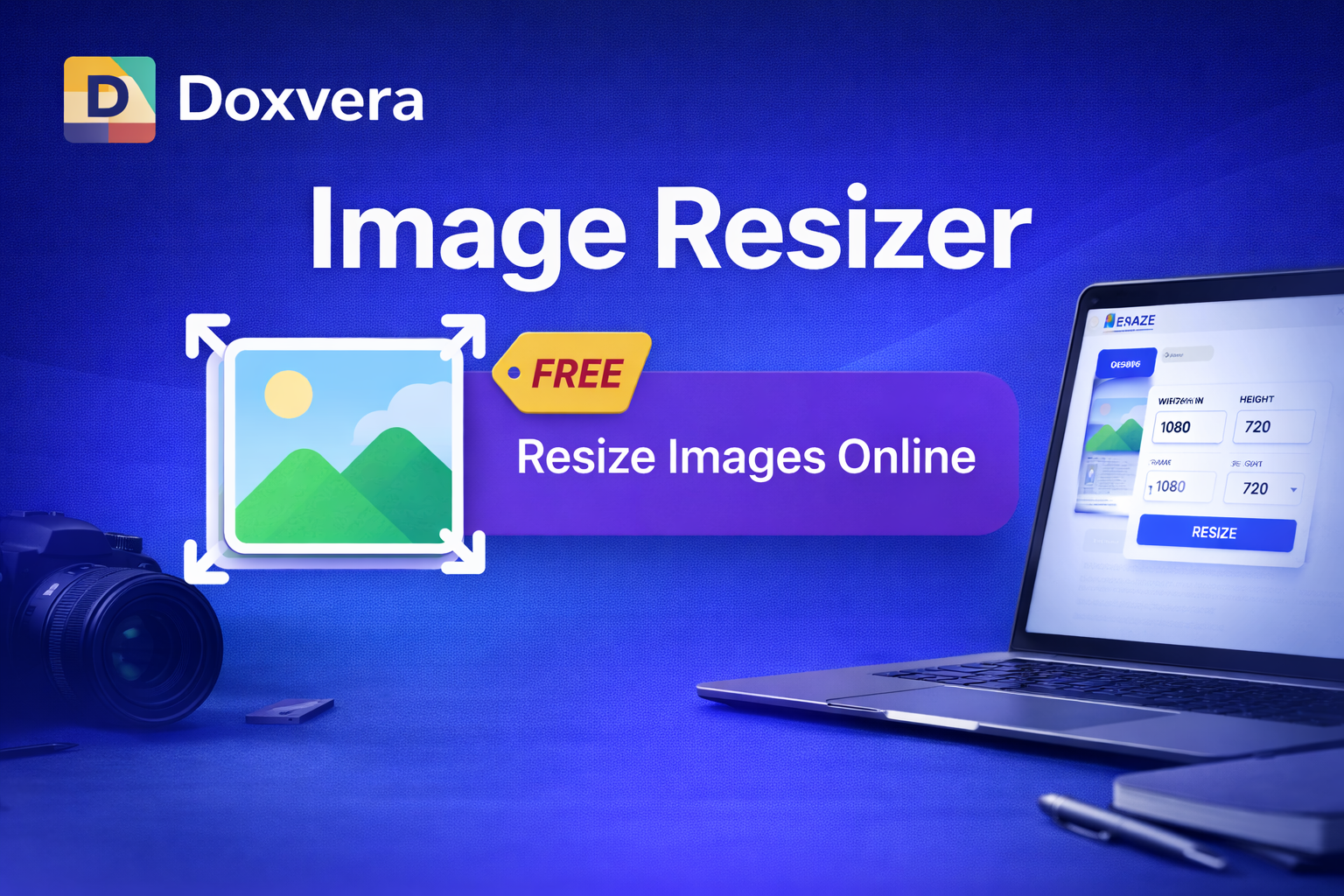
Image Resizer
Resize JPG, PNG, WebP, and Other Images Online
Image Resizer is a free online tool that helps you resize images quickly without losing quality. Whether you want to make an image smaller for a website, resize a photo for social media, reduce the size of a file for email, or prepare product images for an online store, this tool gives you a fast and simple solution.
Images are an important part of every website, blog, social media profile, e-commerce store, and digital project. However, large images can slow down your website, use more storage space, and create problems when uploading files. This is why image resizing is so important.
With our online Image Resizer, you can upload an image, choose new dimensions, and instantly download the resized file. You do not need to install software or create an account. The entire process happens directly in your browser.
What is an Image Resizer?
An Image Resizer is a tool that changes the dimensions of an image. This usually means changing the width and height of the image in pixels.
For example, if you have a photo that is 4000 pixels wide and 3000 pixels tall, you can resize it to 1200 by 900 pixels for easier sharing online.
Resizing an image does not always mean making it smaller. In some cases, users may want to make an image larger for printing, presentations, banners, or design work.
The Image Resizer tool gives you the flexibility to choose the exact dimensions you need.
Why Resize Images?
There are many reasons why people resize images. Large image files can create performance issues, especially on websites and mobile devices. Resizing images can help improve speed, reduce file size, and make your content easier to upload and share.
Some of the most common reasons for resizing images include:
- Improving website speed
- Reducing image file size
- Preparing photos for social media
- Making product images smaller
- Creating email-friendly attachments
- Saving storage space
- Optimizing images for SEO
- Matching platform size requirements
- Improving mobile performance
- Preparing images for presentations and documents
How to Use the Image Resizer Tool
Using the Image Resizer is simple and only takes a few steps.
- Upload the image you want to resize
- Enter the new width and height
- Choose whether to keep the original aspect ratio
- Click the resize button
- Download the resized image instantly
You can resize photos, logos, screenshots, banners, product images, profile pictures, blog images, and many other types of graphics.
Supported File Formats
The Image Resizer supports a wide range of popular image formats, making it useful for almost every situation.
- JPG
- JPEG
- PNG
- WebP
- GIF
- BMP
- ICO
This means you can upload almost any image format and resize it without converting it first.
Resize Images for Websites
Large images can slow down your website significantly. Slow websites can frustrate visitors and increase bounce rates. Search engines such as Google also consider page speed when ranking websites.
When images are too large, pages take longer to load. This can reduce the user experience and make it harder for people to browse your website.
Website owners often resize images before uploading them to:
- Blog posts
- Landing pages
- Online stores
- Portfolio websites
- News articles
- Product pages
- Service pages
- Homepage banners
By reducing image dimensions, you can improve loading times and make your website faster.
Resize Images for Social Media
Every social media platform has recommended image sizes. Uploading the wrong dimensions can cause images to appear blurry, stretched, or cropped incorrectly.
With an Image Resizer, you can create perfectly sized images for:
- Facebook profile pictures
- Facebook cover photos
- Instagram posts
- Instagram stories
- YouTube thumbnails
- Twitter posts
- LinkedIn banners
- Pinterest pins
- TikTok profile images
- WhatsApp status images
Using the correct image dimensions helps your content look more professional on social media.
Resize Images for E-Commerce
Online stores often use many product images. Large product images can slow down pages and make shopping websites feel less responsive.
Resizing product photos can help improve performance and make it easier for customers to browse products.
Image resizing is useful for:
- Product thumbnails
- Main product images
- Category banners
- Brand logos
- Promotional graphics
- Mobile-friendly product pages
E-commerce platforms such as Shopify, WooCommerce, Magento, and BigCommerce often work better when images are properly optimized.
Resize Images for Email
Email services often have file size limits for attachments. Large image files can be difficult to send and may take longer to upload.
By resizing an image before attaching it to an email, you can reduce file size and make sharing faster.
This is useful for:
- Business emails
- School assignments
- Photo sharing
- Client presentations
- Marketing campaigns
- Customer support attachments
Resize Images Without Losing Quality
Many people worry that resizing an image will make it blurry or reduce its quality. A good Image Resizer can help maintain image clarity while reducing dimensions.
Keeping the original aspect ratio is one of the best ways to avoid distortion. If you change the width and height separately without keeping the same ratio, the image may appear stretched or squashed.
For example, if an image is originally 1200 by 800 pixels, resizing it to 600 by 400 pixels keeps the same aspect ratio and preserves the original proportions.
What is Aspect Ratio?
Aspect ratio is the relationship between the width and height of an image.
For example:
- 1200 × 800 = 3:2 aspect ratio
- 1920 × 1080 = 16:9 aspect ratio
- 1080 × 1080 = 1:1 aspect ratio
Keeping the correct aspect ratio helps prevent distortion and ensures that the image looks natural after resizing.
Benefits of Using an Online Image Resizer
- Free to use
- No software installation required
- Works directly in your browser
- Fast processing
- Supports many image formats
- Can improve website performance
- Helps reduce storage space
- Useful for websites and social media
- Works on desktop and mobile devices
- Easy for beginners to use
Who Should Use an Image Resizer?
This tool is useful for many different types of users.
- Bloggers
- Students
- Teachers
- Website owners
- Social media managers
- Digital marketers
- Photographers
- Graphic designers
- E-commerce sellers
- Developers
- Content creators
Anyone who works with images online can benefit from using an Image Resizer.
Common Image Sizes
Different projects require different image sizes. Some common image dimensions include:
- 800 × 600 pixels
- 1024 × 768 pixels
- 1200 × 630 pixels
- 1920 × 1080 pixels
- 1080 × 1080 pixels
- 1280 × 720 pixels
- 150 × 150 pixels
- 300 × 300 pixels
Choosing the right size depends on where the image will be used.
Why Website Speed Matters
Website speed is important for SEO, user experience, and conversions. Slow-loading websites often lose visitors because people do not want to wait for pages to load.
Images are often one of the biggest causes of slow websites. By resizing images before uploading them, you can reduce page size and improve performance.
Faster websites can lead to:
- Lower bounce rates
- Better user experience
- Higher search rankings
- More page views
- Improved conversions
Image Resizer for Mobile Devices
Many people browse websites on smartphones and tablets. Mobile users often have slower internet connections than desktop users.
Large images can take longer to load on mobile devices, which can create a poor experience.
Resizing images helps mobile pages load faster and use less data.
Difference Between Resizing and Cropping
Resizing changes the dimensions of the entire image, while cropping removes parts of the image.
For example, if you resize an image from 2000 by 1000 pixels to 1000 by 500 pixels, the entire image becomes smaller.
If you crop the image, you remove part of it and keep only a selected section.
Both tools are useful, but they serve different purposes.
Tips for Resizing Images
- Keep the original aspect ratio
- Choose the correct dimensions for your platform
- Use smaller images for websites
- Use larger images for printing
- Optimize product images for e-commerce
- Resize social media images before uploading
- Reduce large photos before emailing them
Conclusion
An Image Resizer is one of the most useful tools for anyone who works with photos and graphics online. It helps reduce file sizes, improve website performance, optimize social media images, and prepare photos for many different uses.
Whether you are a blogger, website owner, marketer, designer, student, or online seller, using an Image Resizer can save time and improve the quality of your content.
Upload your image, choose the dimensions you need, and resize your image instantly with our free online Image Resizer tool.
Popular Tools
Recent Posts